
Introduction
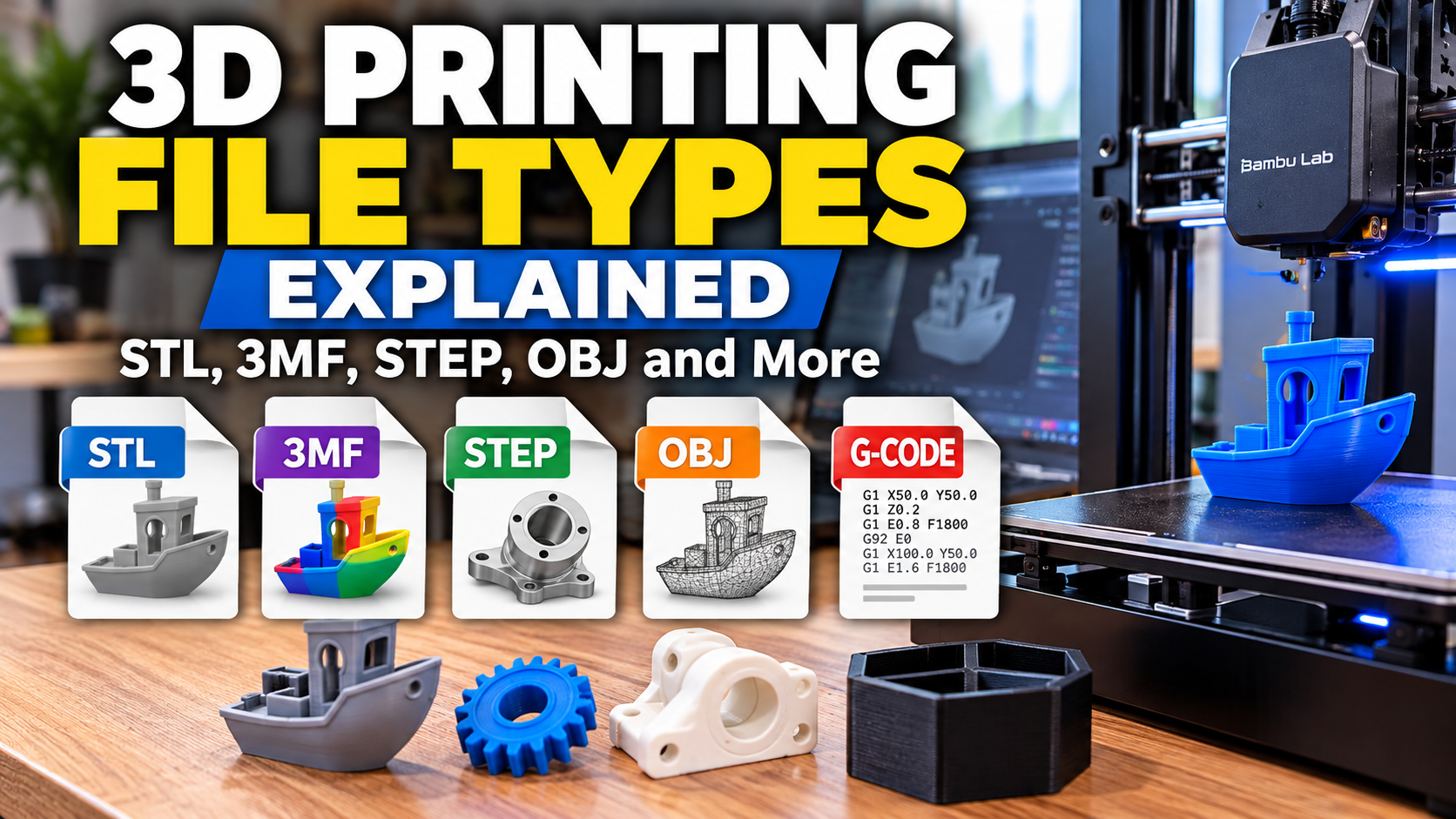
3D printing file types can be confusing when you first start working with 3D printers. You’ve probably encountered file types such as STL, 3MF, STEP, OBJ, and G-code. But what do all of these files actually do?
These formats serve very different purposes. Some contain the geometry of a 3D model, some preserve information about colors and materials, some are designed for editing in CAD software, and others contain the actual instructions sent to a 3D printer.
Understanding the difference matters because the best file format depends on where you are in the 3D-printing workflow. A STEP file may be ideal when you’re designing a mechanical part, while an STL or 3MF file may be what you send to your slicer. The printer itself generally doesn’t print either of those files directly—it ultimately needs machine instructions such as G-code.
This guide explains the most common 3D-printing file formats, what information they contain, what they’re good for, and how they fit together from the original design all the way to the finished print.
Table of Contents
The 3D Printing File Workflow
Before looking at individual file formats, it helps to understand where they fit in the overall process.
A typical workflow looks something like this:
CAD software → STEP → STL/3MF → Slicer → G-code → 3D printer
That’s not the only possible workflow, but it illustrates an important distinction: different file formats are used at different stages of the process.
A designer might create a mechanical part in CAD software and save the editable design as a STEP file. When the design is ready to print, it can be exported as a mesh such as an STL or 3MF file and imported into a slicer.
The slicer then converts that model into printer-specific instructions. Those instructions tell the printer where to move, how much filament to extrude, how fast to move, when to heat the nozzle and bed, and when to perform other operations.
The result is typically a G-code file or a printer-specific version of machine instructions.
The important takeaway: You don’t normally send a STEP or STL file directly to the printer and expect it to know what to do. The slicer is the translator between the 3D model and the printer.
A useful distinction
It’s worth separating these formats into three broad groups:
Design/CAD files — such as STEP, which preserve information useful for modifying a design.
3D model/mesh files — such as STL and OBJ, which describe the shape of an object as a mesh.
Printer or project files — such as G-code and 3MF-based slicer projects, which can contain information used to prepare or manufacture the model.
This distinction will make the individual file formats much easier to understand.
The Workflow Isn’t Always Linear
The workflow described above is a useful way to understand the different roles of each file format, but you don’t always need to move through every step separately.
Modern slicers increasingly include basic modeling and editing tools that blur the line between a slicer and CAD software. You can often create simple shapes, combine objects, add text, cut or modify models, and prepare the resulting design for printing without opening a dedicated CAD application.
Depending on the slicer, those tools may allow you to create or export a model as an STL or 3MF file, or work with the model directly inside the slicer’s project environment. The model or project still needs to be sliced into G-code or equivalent machine instructions before the printer can manufacture it.
For simple projects, the entire workflow might happen within the slicer:
Slicer → Design → 3MF → G-code → Print
This can be convenient for projects such as:
- Name plates and signs
- Simple brackets and spacers
- Boxes and containers
- Text and labels
- Basic geometric parts
- Quick modifications to downloaded models
For more involved engineering projects, a dedicated CAD program provides much greater control over dimensions, constraints, tolerances, and future modifications. A typical workflow might look like:
CAD → STEP → STL/3MF → Slicer → G-code → Print
STEP isn’t necessarily required in this workflow. If you’re designing a part yourself and don’t need to exchange the design with another CAD program, you can go directly from the CAD model to an STL or 3MF.
STEP becomes particularly useful when you want to share or transfer precise CAD geometry between different CAD programs before creating the printable STL or 3MF.
The important distinction is that dedicated CAD software and modern slicers serve different purposes, even though their capabilities increasingly overlap. A slicer may be perfectly capable of creating a simple printable object, while a complex mechanical component may benefit greatly from a full parametric CAD system.
The right workflow depends on what you’re making.
STL: The Classic 3D Printing File
STL is probably the most familiar 3D-printing file format. It has been around for decades and is supported by virtually every major 3D-printing workflow.
An STL file describes the surface geometry of a three-dimensional object. Rather than storing the model as editable CAD features such as holes, dimensions, or extrusions, it represents the object’s outer surface as a collection of small triangles.
Those triangles form a mesh that approximates the shape of the original model.
You may encounter two versions of the format:
.stl— the standard file extension- ASCII STL — a text-based representation of the triangles
- Binary STL — a more compact representation that is far more common
For normal 3D printing, the distinction between ASCII and binary STL generally isn’t something you need to worry about. Your CAD software or slicer will usually handle it automatically.
What STL Contains
An STL file primarily contains geometry.
It tells the software where the triangles making up the object’s surface are located and which direction their surfaces face. From that information, the slicer can reconstruct the shape of the object and generate the layers needed for printing.
What STL doesn’t normally contain is just as important.
A basic STL does not preserve things such as:
- The original CAD sketches
- Parametric dimensions
- Feature history
- Materials
- Filament assignments
- Multiple colors
- Slicer settings
- Printer settings
That’s why an STL is generally considered a finished mesh, rather than an editable CAD model.
For example, suppose you design a bracket with a precisely dimensioned 10 mm hole in a CAD program. Once you export it as an STL, the slicer sees the resulting triangular surface representing that hole. It doesn’t retain the original feature that said, “this is a 10 mm hole.”
You can still scale or modify the mesh in some software, but you have lost much of the design intelligence contained in the original CAD model.
Why STL Is Still So Popular
Despite its limitations, STL remains extremely useful.
Its biggest advantages are simplicity and compatibility.
Almost any 3D CAD program, modeling application, or slicer can import or export STL. If someone sends you an STL for a simple object, you can usually load it into your slicer without worrying about whether your software supports a particular manufacturer’s project format.
STL files are also relatively straightforward because they focus on one thing:
The shape of the object.
For a simple single-color print, that’s often all the slicer needs.
The Limitations of STL
STL becomes less convenient when a model needs to contain information beyond its basic geometry.
For example, a single STL doesn’t inherently tell your slicer:
“Make this part red and that part blue.”
You can accomplish multicolor printing by using multiple STL files or by assigning different regions of a model to different materials within the slicer, but the basic STL format itself doesn’t contain that color information.
This is one of the reasons newer formats such as 3MF have become increasingly important.
STL is therefore best thought of as a universal geometry format rather than a complete 3D-printing project format.
3MF: The Modern 3D Printing Format
3MF, short for 3D Manufacturing Format, is an open standard developed specifically for 3D printing and additive manufacturing
While an STL is primarily concerned with the geometry of an object, 3MF can store the model geometry along with additional information about the object and how it is intended to be manufactured.
That makes 3MF particularly useful for modern 3D-printing workflows.
A 3MF file can contain information such as:
- Model geometry
- Multiple objects
- Object positioning
- Units
- Colors
- Materials
- Textures
- Metadata
- Other manufacturing-related information
This doesn’t mean that every 3MF file contains all of those things. 3MF is a container capable of storing much more information than a basic STL, and the software creating the file determines what information is actually included.
Why 3MF Is Different From STL
The easiest way to understand the difference is to think of STL as describing what the object looks like, while 3MF can describe the object and additional information about how it should be handled.
Imagine downloading a model of a small sign.
An STL might contain the geometry of the sign as a mesh. If the sign has raised lettering, that geometry can be included, but the STL doesn’t inherently tell the slicer which portions should be printed in different colors.
A 3MF file can contain multiple objects or parts along with color and material information, depending on how it was created.
This makes 3MF particularly useful for models that contain multiple parts, colors, or materials.
3MF and Multicolor Printing
This is one area where 3MF has a significant advantage over a basic STL.
A multicolor project can contain separate model components and information identifying which colors or materials should be assigned to them.
For example, a sign could contain:
- A black base
- White lettering
- A red logo
Rather than treating those as three unrelated STL files that have to be positioned manually, a properly created 3MF can preserve their relationship as part of a single project.
This is particularly useful with modern slicers and automated material systems. If you’re interested in how multiple colors and materials are actually handled during a print, see our guide to multicolor and multi-material 3D printing.
For example, a 3MF project created for a Bambu Lab printer can preserve considerably more information than simply exporting the model as an STL. Depending on how the project was created, that can include the model arrangement, filament assignments, print settings, and other slicer information.
3MF Isn’t Just a “Better STL”
It’s tempting to think of 3MF as simply a newer version of STL, but that’s not quite right.
STL is primarily a geometry format.
3MF is a broader manufacturing format that can contain geometry plus additional information.
That distinction is important because a 3MF file can be used in several different ways.
A designer might provide a 3MF containing only model geometry and color information. A slicer might save a much more complete 3MF project containing the models and the settings needed to reproduce a particular print.
As a result, two files with the .3mf extension can contain very different information.
3MF Has Another Important Advantage
3MF can also avoid some of the problems associated with converting models between different units and coordinate systems.
The format was designed specifically for additive manufacturing and supports information that isn’t represented in a basic STL.
For the average hobbyist, however, the most important takeaway is simpler:
If STL is a convenient way to share a 3D shape, 3MF is a way to share a much richer 3D-printing project.
That doesn’t make STL obsolete. STL remains extremely common and is still an excellent choice when all you need is a simple, universal representation of a single object’s geometry.
But as 3D printing becomes increasingly focused on multiple objects, colors, materials, and sophisticated slicer workflows, 3MF becomes considerably more useful.
STEP: The CAD File You Can Actually Edit
STEP, usually seen with the .step or .stp file extension, is one of the most important file formats for anyone working with mechanical CAD.
Unlike STL, STEP is not primarily a 3D-printing file format. It is a standardized format designed to exchange three-dimensional product data between different CAD programs.
That’s an important distinction.
If someone sends you an STL of a bracket, you can usually put it into a slicer and print it. If they send you a STEP file, you can often open it in a CAD program, inspect its geometry, and make meaningful changes to the design.
Why STEP Is Different From STL
The biggest difference is how the geometry is represented.
An STL represents the surface of an object using a mesh made from triangles.
STEP can represent the model using precise geometric surfaces and solid geometry.
For example, imagine a cylindrical hole designed to be exactly 10 mm in diameter.
In a CAD model, that hole can remain a true geometric feature with a defined diameter.
When the model is exported as an STL, the curved surface is converted into a series of triangular facets. The slicer can still produce a very good circular hole, but the underlying model is now a mesh approximation.
This is why STEP is generally much more useful when you need to modify a mechanical design.
STEP vs. STL
Consider a simple example: you download a mounting bracket and discover that one mounting hole needs to move 5 mm.
With a STEP file, a compatible CAD program may allow you to select the hole, change its position or dimensions, and continue working with the model.
With an STL, you’re working with a collection of triangles rather than the original CAD features. Making that same modification can be considerably more difficult.
This is one of the most important rules to remember:
Use STEP when you need to continue designing. Use STL when you primarily need to print.
There are exceptions, and modern mesh-editing tools can do some surprisingly sophisticated things, but starting with the original CAD model is usually far easier than trying to reverse-engineer a mesh.
Why You Don’t Usually Send STEP Directly to the Printer
Even though STEP contains highly precise geometry, the 3D printer still can’t use that geometry directly.
The slicer needs to convert the model into printable layers and then generate machine instructions.
The workflow therefore looks something like:
STEP → Slicer → G-code → Printer
Many modern slicers can import STEP files directly, performing the necessary conversion internally before generating the toolpath.
However, if you’re sharing a design with someone specifically so they can modify it, providing the STEP file is often much more useful than providing only an STL.
STEP Is Especially Valuable for Functional Parts
For the kind of engineering and functional parts commonly produced on desktop 3D printers, STEP can be an extremely useful format to keep around.
A good workflow is often:
Create the original design in CAD → Save the native CAD project → Export STEP for interchange → Export STL or 3MF for printing
That way, you retain the editable source rather than locking yourself into a mesh.
For example, if you design a custom bracket today and discover six months later that one dimension needs to change, having the original CAD model—or at least a STEP version—can save you from rebuilding the part from scratch.
One important caveat
STEP files can contain much more useful design information than STL, but they don’t necessarily preserve every feature or parameter from the original CAD program.
A native Fusion, SolidWorks, FreeCAD, or other CAD project can contain the application’s complete feature history, sketches, constraints, parameters, and other information.
STEP is primarily an interchange format. It allows different CAD programs to exchange accurate geometry, but it isn’t necessarily a perfect copy of the original native project.
So, if you’re the designer, keep the original CAD file whenever possible.
Think of STEP as an excellent universal handoff format—not necessarily a replacement for your native CAD project.
OBJ: Another Mesh Format
OBJ, usually using the .obj file extension, is another widely supported format for representing 3D models as a mesh.
Like STL, an OBJ file describes the surface geometry of an object using vertices, edges, and faces. However, OBJ can store more information than a basic STL, including surface normals, texture coordinates, and material references.
This makes OBJ particularly useful for models where appearance and surface information matter in addition to basic geometry.
When OBJ Makes Sense
OBJ is commonly encountered in:
- 3D modeling and animation
- 3D scanning and photogrammetry
- Digital art
- Game and visualization workflows
- Some 3D-printing applications
One of its advantages is that it can work with texture and material information through associated files. An OBJ project may include an .obj file along with an .mtl material file and image textures.
That’s something a basic STL does not provide.
OBJ for 3D Printing
OBJ can be imported into many slicers, but it isn’t necessarily the first choice for a typical 3D-printing workflow.
If you’re printing a simple mechanical part, STL or 3MF will usually be more convenient.
OBJ becomes more interesting when you’re dealing with models that originate outside traditional CAD workflows, particularly 3D scans and visually detailed models.
It can also be useful for models where color or texture information needs to be preserved, although support for those features varies between slicers and printer workflows.
OBJ vs. STL
The easiest way to think about the difference is:
STL: simple, widely compatible geometry.
OBJ: mesh geometry with the ability to carry additional surface and material information.
Neither format is inherently “better.” They were designed with somewhat different needs in mind.
For everyday 3D printing, STL remains extremely common. For models coming from scanners, graphics applications, or workflows where texture and material information matters, OBJ may be the better choice.
And if you’re working with a modern 3D-printing workflow involving multiple colors or materials, 3MF will often be a better choice than either STL or OBJ because it was designed to carry richer manufacturing information.
G-code: What the Printer Actually Uses
If STL, 3MF, STEP, and OBJ describe a model or a printing project, G-code is different. G-code contains the instructions that tell a machine how to manufacture the part.
A 3D printer uses those instructions to control things such as:
- Where the printhead moves
- How much filament is extruded
- How fast the printer moves
- Nozzle temperature
- Bed temperature
- Cooling fans
- Retraction
- Acceleration and other motion parameters
- Tool or filament changes
The exact commands and features vary between printer firmware and manufacturers, but the basic concept is the same: the slicer turns the model into a sequence of machine instructions that the printer can execute.
How G-code Fits Into the Workflow
The process we’ve been describing now becomes:
CAD → STEP → STL/3MF/OBJ → Slicer → G-code → 3D printer
The slicer takes the three-dimensional model and decides how to manufacture it one layer at a time.
For example, if you tell the slicer to print a part with:
- 0.20 mm layer height
- Four walls
- 20% infill
- 210°C nozzle temperature
- 60°C bed temperature
the slicer converts those settings into thousands of individual instructions.
The resulting G-code might tell the printer to move to a particular location, heat the nozzle, extrude a precise amount of filament, move at a particular speed, turn the cooling fan on, and then continue to the next operation.
Why You Usually Don’t Edit G-code
G-code is technically a text-based format, so you can open many G-code files in a text editor and see the commands.
That doesn’t mean it’s a good idea to edit them manually.
A modern slicer may generate thousands or even hundreds of thousands of commands for a single print. Those commands depend on the printer, firmware, nozzle, filament, and settings used to generate them.
If you need to change how a model prints, it’s normally much better to change the settings in the slicer and generate new G-code.
G-code Is Usually Printer-Specific
Another important point is that G-code isn’t necessarily universal.
Different printers and firmware can support different commands. A G-code file generated for one printer may not work correctly—or at all—on another printer.
This is why you normally select your specific printer and print profile in the slicer before slicing a model.
The slicer then generates instructions appropriate for that machine.
Modern Printers May Hide the G-code
If you’re using a modern networked printer, you may rarely see a file with a .gcode extension at all.
The slicer may package the print in a manufacturer-specific project or transfer it directly to the printer over Wi-Fi or another connection.
The underlying concept hasn’t changed, however.
The printer still needs machine instructions.
The software may simply hide the G-code generation and transfer process from the user.
The Key Difference
At this point, we can summarize the major formats we’ve covered:
STEP → editable CAD geometry and design interchange
STL → basic 3D mesh geometry
OBJ → mesh geometry with additional surface information
3MF → 3D-printing model/project information, potentially including colors, materials, and other data
G-code → instructions for the printer to manufacture the part
Understanding that distinction makes the entire 3D-printing software workflow much less confusing.
Next, we’ll look at other file formats you’ll encounter, including AMF and proprietary project files.
Other 3D Printing File Types and Formats
STL, 3MF, STEP, OBJ, and G-code cover most of the formats you’re likely to encounter, but there are several others worth knowing about.
Some are specialized formats, while others are associated with particular software or printer ecosystems.
AMF
AMF, or Additive Manufacturing File Format, was designed as a more capable successor to STL.
Like 3MF, AMF can store information that a basic STL cannot, including:
- Multiple objects
- Materials
- Colors
- Textures
- More detailed manufacturing information
AMF was intended to provide a standardized format for additive manufacturing while addressing some of STL’s limitations.
However, AMF never achieved the same widespread adoption as STL, and 3MF has become the more prominent modern alternative.
For most users today, there is little reason to specifically seek out AMF unless a particular application requires it.
3MF vs. AMF
The two formats have a similar goal: provide a richer representation of a printable model than STL.
The practical difference for most hobbyists is simple:
3MF is the modern format you’re much more likely to encounter.
3MF has gained substantial adoption among modern 3D-printing software and manufacturers, making it the more practical choice for new projects.
Proprietary Project Files
Some 3D-printing programs create their own project files.
These can contain considerably more information than a basic model file, including:
- Model geometry
- Object placement
- Filament assignments
- Print settings
- Supports
- Printer profile
- Slicer settings
- Other project-specific information
For example, a slicer may allow you to save an entire print project so that you can reopen it later and continue editing the arrangement or settings.
This can be extremely useful when you’re working on a complicated multicolor or multi-material print.
The downside is compatibility.
A project file created by one manufacturer’s software may not open correctly—or at all—in another slicer.
That’s why it’s useful to distinguish between interchange formats such as STL and STEP and project files designed primarily to preserve a particular software workflow.
Don’t Confuse a Project File With the Model
This distinction can save you a lot of frustration.
Suppose you spend an hour arranging several colored parts, assigning filaments, positioning them on the build plate, and configuring supports.
Saving the slicer’s project preserves all of that work.
Exporting the individual model as an STL does not.
The STL may preserve the geometry, but it won’t necessarily preserve the entire print setup you created.
For projects that you expect to revisit, keeping the original project file can therefore be just as important as keeping the model itself.
Which 3D Printing File Format Should You Use?
Now that we’ve looked at the major file formats, the choice becomes much simpler. In most cases, you don’t need to pick one format for everything. Different formats serve different purposes at different stages of the workflow.
| What you’re trying to do | Best format to start with | Why |
|---|---|---|
| Design a mechanical part | STEP | Precise, editable geometry |
| Share a basic 3D model | STL | Extremely widely supported |
| Print a simple single-color model | STL | Simple and universally supported |
| Print a multicolor model | 3MF | Can preserve colors, objects, and other information |
| Print a multi-material project | 3MF | Better suited to complex material assignments |
| Work with a 3D scan | OBJ or STL | Both can represent mesh geometry |
| Preserve a complete slicer project | 3MF or native project format | Can preserve settings and model arrangement |
| Send instructions to a printer | G-code | Contains machine instructions |
If You’re Designing Your Own Part
Start with your native CAD format and keep it.
If you’re using a parametric CAD program, the native project contains the sketches, dimensions, constraints, features, and other information that makes the model easy to modify later.
Then export a STEP file when you need to share the editable geometry with someone using another CAD program.
When you’re ready to print, export or save the model in a format your slicer handles well, such as STL or 3MF.
A good rule is:
Keep the native CAD file → use STEP for CAD interchange → use STL/3MF for printing.
If You’re Downloading Models
If you’re downloading a model from a 3D-printing site, STL is still a perfectly good choice for a simple model.
If a creator offers a 3MF version, however, it may be worth choosing that instead—particularly if the model is designed for multicolor printing or comes with multiple objects and predefined settings.
Just remember that a 3MF file can contain considerably more than the model itself, so check what you’re actually downloading before assuming it is simply an STL in a different wrapper.
If You’re Printing in Multiple Colors
This is where 3MF becomes particularly useful.
A properly prepared 3MF can preserve multiple objects, colors, materials, positioning, and potentially slicer settings.
That can make it much easier to go from a downloaded model to a finished multicolor print.
For more on how these systems work, see our guide to multicolor and multi-material 3D printing.
If You’re Sending a File to Someone Else
Think about what you want the recipient to be able to do.
If they simply need to print the part, an STL or 3MF may be appropriate.
If they need to modify the design, provide the STEP file whenever possible.
If they need to reproduce your exact slicer setup, provide the appropriate 3MF project or native slicer project file in addition to the model.
This distinction is especially important for functional parts. Sending someone only an STL may allow them to print your design, but it doesn’t necessarily give them a practical way to change a dimension later.
The Short Version
If you only remember a few things from this guide, remember these:
STEP = design and CAD interchange
STL = basic 3D geometry
OBJ = mesh geometry with additional surface information
3MF = richer 3D-printing model or project information
G-code = instructions for the printer
Once you understand those five distinctions, most of the file types you’ll encounter in everyday 3D printing become much easier to understand.
Frequently Asked Questions About 3D Printing File Types
Is STL or 3MF better for 3D printing?
Neither is universally better. STL is simpler and extremely widely supported, while 3MF can preserve additional information such as multiple objects, colors, materials, and print-project information. For a basic single-color model, STL is often perfectly adequate. For more complex projects, 3MF can be much more useful.
Can I edit an STL file?
Yes, but an STL is a mesh, not an editable parametric CAD model. Mesh-editing software can modify it, but making dimensional changes can be more difficult than working from the original CAD model.
If you expect to make significant changes to a mechanical part, a STEP file or the original native CAD file is usually preferable.
Can I convert an STL to STEP?
Yes, many CAD programs can import an STL and convert or recreate it as a solid or surface model. However, this doesn’t magically restore the original CAD design.
The resulting STEP file is generally based on the mesh geometry, so it may still contain thousands of individual facets rather than the clean parametric features of the original design.
If possible, get the original STEP or native CAD file instead of converting an STL.
Can a 3D printer print an STL file directly?
Generally, no.
An STL describes the model’s geometry, but the printer needs machine instructions telling it how to move and extrude material.
A slicer takes the STL, determines how the object should be printed, and generates the appropriate printer instructions.
What file format should I download for a multicolor 3D print?
When available, 3MF is often the better choice because it can preserve multiple objects, colors, materials, positioning, and other project information.
However, the quality of the file preparation matters. A poorly prepared 3MF isn’t automatically better than a well-prepared collection of STL files.
Can I open a 3MF file in any slicer?
Not necessarily.
3MF is an open standard, but software can support different portions of the format. A 3MF created by one slicer may contain information that another slicer doesn’t recognize.
For maximum compatibility, a basic STL is still hard to beat. For modern workflows where preserving project information matters, 3MF is often the better option.
Is G-code the same for every 3D printer?
No.
G-code commands and supported features can vary between printers and firmware. A file generated for one printer shouldn’t automatically be assumed to be suitable for another.
That’s why you normally select the specific printer and profile in your slicer before generating the machine instructions.
Should I keep my original CAD files?
Absolutely.
If you’ve designed something yourself, keep the native CAD project whenever possible.
A good archive might contain:
Native CAD file → STEP → STL/3MF → Slicer project
The native CAD file is your editable source. STEP provides a useful interchange version, while STL or 3MF provides a version suitable for your printing workflow.
Keeping those files can save you from having to recreate a design months or years later.
Final Thoughts
Understanding 3D printing file types doesn’t have to be complicated once you understand what each format is designed to do.
The most important thing to remember is that a 3D model file and a printer instruction file are not the same thing.
A typical workflow might look like:
Design in CAD → save the native CAD file → export STEP → export STL or 3MF → prepare in a slicer → generate printer instructions → print
Each format has a role:
- STEP preserves precise CAD geometry for design and interchange.
- STL provides a simple and highly compatible representation of 3D geometry.
- OBJ provides mesh geometry with additional surface information.
- 3MF can preserve much more information about a 3D-printing project, including colors, materials, multiple objects, and settings depending on how it was created.
- G-code contains the instructions the printer uses to manufacture the part.
There isn’t one “best” file format. The right choice depends on what you’re trying to accomplish.
If you’re designing a functional part, keep the original CAD file. If you’re sharing a model for simple printing, STL remains an excellent choice. If you’re working with multiple colors, materials, or a more complete print project, 3MF may be the better option.
Once you understand where each format fits in the workflow, file extensions stop being confusing—and choosing the right one becomes much easier.
1 thought on “3D Printing File Types Explained: STL, 3MF, STEP, OBJ and More”
Comments are closed.