
Disclosure: As an Amazon Associate, HomeTestBench earns from qualifying purchases.
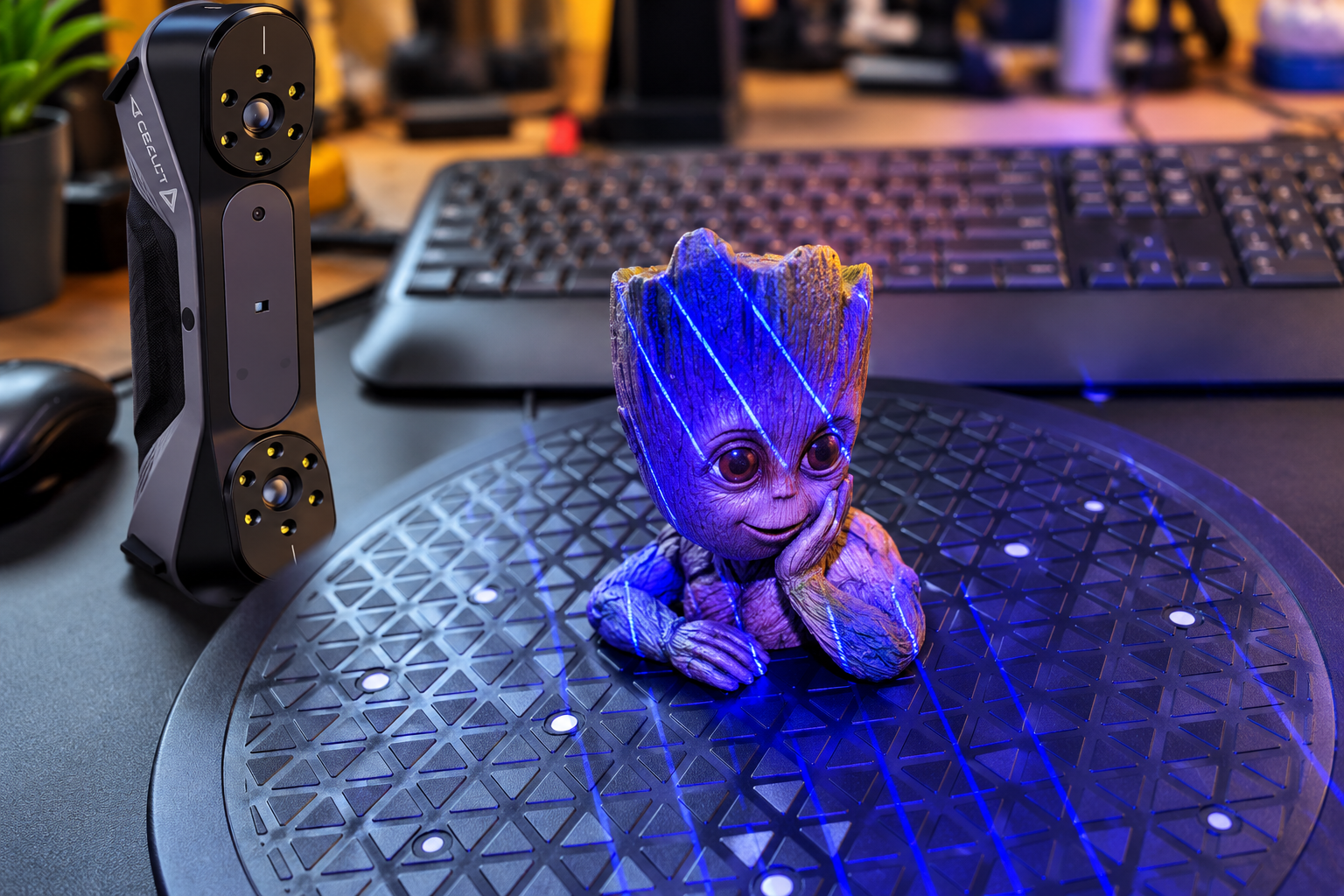
If you’re looking for a 3D scanner for 3D printing, reverse engineering, figurines, or capturing physical objects as digital models, the Creality CR-Scan Raptor is an interesting option. It combines blue laser and infrared scanning technologies in a relatively compact package and is aimed at users who want considerably more capability than a basic entry-level 3D scanner.
On paper, the Raptor has an impressive list of specifications. But specifications only tell part of the story. What matters is what the scanner is actually like to use, how well it handles real-world objects, how much work is required to produce a usable model, and how well that model fits into an existing 3D-printing workflow.
We put a CR-Scan Raptor through a hands-on test, including setup, firmware updating, calibration, infrared scanning, and scanning a small Groot figurine. We then took the resulting scan through the cleanup process in CrealityScan, including alignment, fusion, smoothing, spike removal, hole repair, and creating a flat base. Finally, we imported the resulting STL into Bambu Studio to see what happened when the model reached the next stage of the workflow.
Here’s what we found.
Quick Verdict
The Creality CR-Scan Raptor is a capable 3D scanner that rewards users who are willing to learn the scanning and post-processing workflow.
Our experience wasn’t completely plug-and-play. We initially encountered an intermittent USB connection problem, with Windows occasionally disconnecting the scanner and Device Manager reporting an unknown USB device. Connecting the Raptor directly to a motherboard USB port solved the problem. After updating the firmware and completing calibration, we were able to move on to actual scanning.
Our first real test also demonstrated an important reality of 3D scanning: even a capable scanner cannot capture geometry that it cannot see. The Raptor captured the overall shape of our Groot figurine well, but the overhanging chin created an area that wasn’t visible from our original scanning angles. The finished scan also required cleanup and repair before it became a practical 3D-printable model.
That doesn’t make the Raptor a bad scanner. In fact, it illustrates what you should expect from this type of equipment.
Our verdict: The CR-Scan Raptor is a serious and versatile 3D scanner for makers, 3D-printing enthusiasts, and users interested in reverse engineering. It isn’t a one-button “scan anything perfectly” device, but the combination of scanning hardware and CrealityScan’s processing tools gives you a lot to work with.
What Is the CR-Scan Raptor?
The Creality CR-Scan Raptor is a 3D scanner designed to capture physical objects and convert them into digital 3D models.
One of its most important characteristics is its combination of blue laser and infrared scanning. Different scanning technologies have different strengths, and having more than one option makes the Raptor more versatile when dealing with different object sizes, surfaces, and shapes.
The Raptor can be used for applications ranging from capturing decorative objects and figurines to creating reference geometry for reverse engineering. For makers, one of the most interesting applications is using a physical object as the starting point for a digital model that can eventually be modified or reproduced with a 3D printer.
Creality provides software, manuals, firmware, and support information through its official scanner resources. Creality Raptor software and support
Blue Laser vs. Infrared Scanning
The Raptor’s hybrid approach is important because there isn’t a single scanning technology that is ideal for every object.
Blue laser scanning projects laser lines onto the object and uses the scanner’s cameras to capture the resulting geometry. This approach is particularly useful when detailed geometry and precision are important.
Infrared scanning uses near-infrared structured light and cameras to capture the object’s shape. It can provide a different approach to tracking and capturing objects and can be particularly useful when scanning objects where laser-line scanning isn’t the most convenient option.
The important takeaway is that these aren’t simply two different speed settings. They are different scanning approaches, and choosing the appropriate mode for the object can affect how easily you can capture it.
During our initial testing, we used infrared scanning for the Groot figurine. That gave us a good opportunity to see how the scanner performed on a relatively small object with a mixture of rounded and detailed surfaces.
CR-Scan Raptor Key Specifications
| Feature | CR-Scan Raptor |
|---|---|
| Scanning technologies | Blue laser and infrared |
| Rated Scan Speed | Up to 60 FPS blue laser / 20 FPS NIR |
| Our MEasure Performance | Approximately 50 FPS blue laser / 30 FPS infrared |
| Software | CrealityScan |
| Tracking | Geometry, texture and marker-based options |
| Primary applications | 3D scanning, 3D printing, modeling, reverse engineering |
| Connection | USB |
| Output formats | STL and other supported 3D formats |
In our testing environment, the Raptor reached approximately 50 frames per second in blue laser mode and approximately 30 frames per second in infrared mode. Those results don’t necessarily represent the maximum rated speed in every configuration, but they gave us a useful indication of performance on our system.
Setup and First Impressions
Our first experience with the Raptor wasn’t completely trouble-free.
The scanner initially exhibited an intermittent USB connection problem. Windows would recognize the device and then disconnect it again. Device Manager at one point reported an unknown USB device associated with a descriptor request problem.
That could have been concerning if the scanner itself were defective.
Fortunately, connecting the Raptor directly to a USB port on the computer’s motherboard resolved the problem. Once connected directly, the scanner became stable and we were able to proceed with the software setup.
This is worth mentioning because USB connectivity can be an overlooked part of a 3D scanner purchase. A scanner may have excellent hardware, but if the computer connection isn’t reliable, getting started can be frustrating.
Firmware Update and Calibration
After getting the connection working reliably, we updated the scanner’s firmware and moved on to calibration.
The calibration process is an important step before serious scanning. The scanner and software need to establish the appropriate relationship between the cameras, optics, and scanning system.
Once calibration was complete, we ran the scanner’s performance tests. In our testing environment, the Raptor reached up to approximately 50 frames per second in blue laser mode and approximately 30 frames per second in infrared mode.
At that point, we were ready to stop looking at specifications and actually scan something.
CrealityScan Software: From Raw Scan to 3D Model
The scanner hardware is only half of the equation. The other half is the software.
CrealityScan is the software that turns the Raptor’s captured data into something you can actually use. It handles the scanning process itself, but it also provides tools for alignment, fusion, cleanup, mesh processing, hole filling, smoothing, and other operations. That’s important because the raw scanning process doesn’t necessarily produce a finished STL.
Our experience made that particularly clear.
CrealityScan has evolved significantly, and current versions include tools for calibration, scanning, alignment, mesh processing, smoothing, mesh simplification, hole filling, and other cleanup operations. Creality also provides dedicated software guides and troubleshooting documentation. Creality Scan software guides
Choosing a Tracking Method
CrealityScan provides multiple approaches to tracking the scanner as it moves around an object. Depending on the object, geometry, texture, and available reference points, different tracking methods can make more sense.
For a simple object with enough distinctive geometry, geometry-based tracking may be sufficient. Objects with limited geometric features can benefit from texture or marker-based tracking.
This is one of the areas where the Raptor becomes more of a tool than a gadget. You aren’t simply pressing “scan” and expecting the software to figure everything out automatically. Understanding how tracking works can make a significant difference in the quality and stability of a scan.
Our First Real Scan: Groot
For our first serious test, we chose a small Groot figurine approximately four inches tall. We wanted an object with enough surface detail to give the scanner a meaningful test while keeping the overall size manageable for a first attempt.
During our initial testing, we tried infrared scanning with the Groot figurine, but ultimately switched to Blue Laser mode with markers because it produced a more useful result. We placed Groot on a turntable and worked our way around the figurine, allowing the scanner to capture the different surfaces while the markers helped maintain tracking.
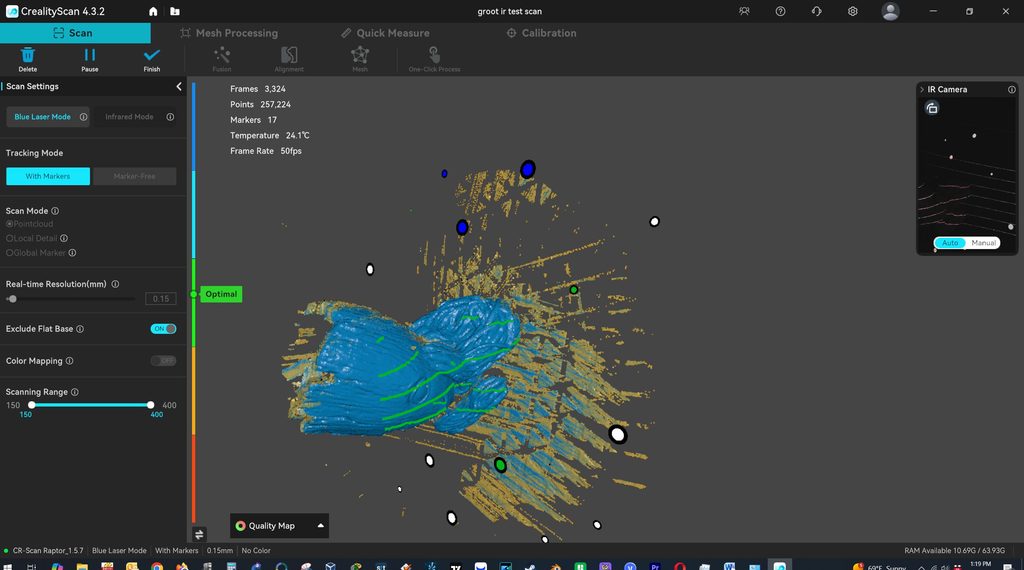
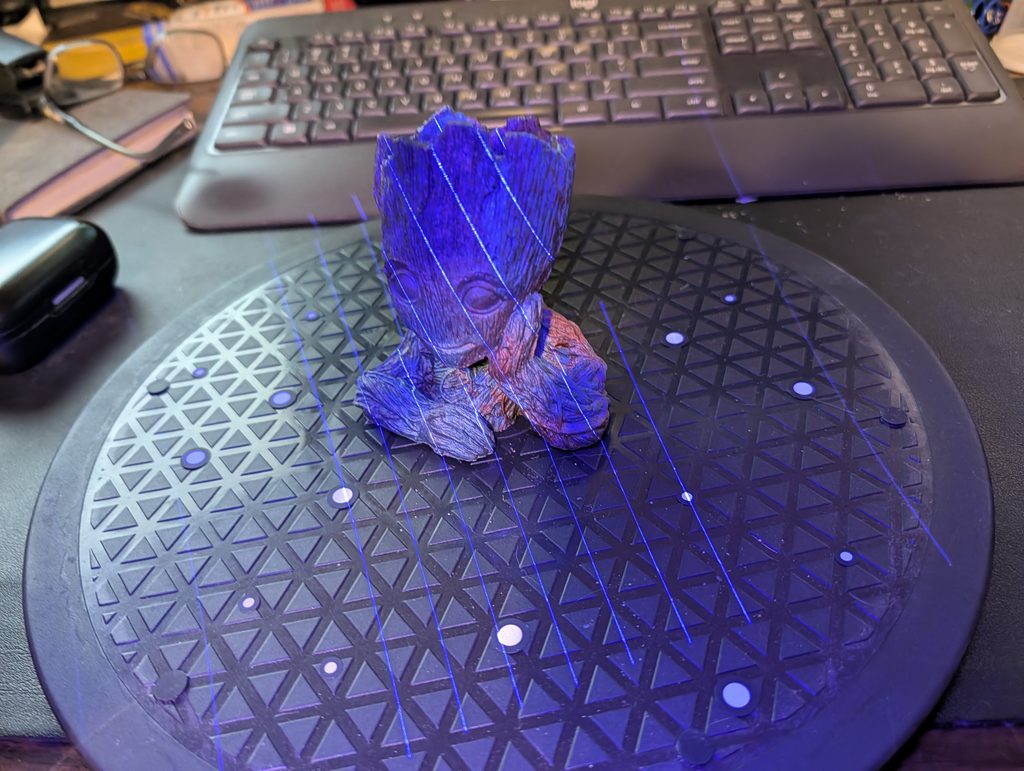
The resulting scan captured the overall shape surprisingly well. The face, eyes, bark-like surface detail, shoulders, and general body shape were all recognizable. However, we quickly discovered that even a capable scanner has a basic limitation: it can’t capture geometry that it can’t see.
Capturing the Missing Geometry
The underside of Groot’s chin was the problem. The overhang made that area difficult to see from the scanning position, leaving missing geometry in the first scan.
Rather than trying to have the software guess what belonged there, we made an additional scan from a different angle specifically to capture the underside of the chin and other areas that weren’t adequately captured during the first pass.
We then brought the additional scan into CrealityScan and aligned it with the original scan before fusing the two together. The additional data filled in much of the missing geometry and gave us a substantially more complete model to work with.
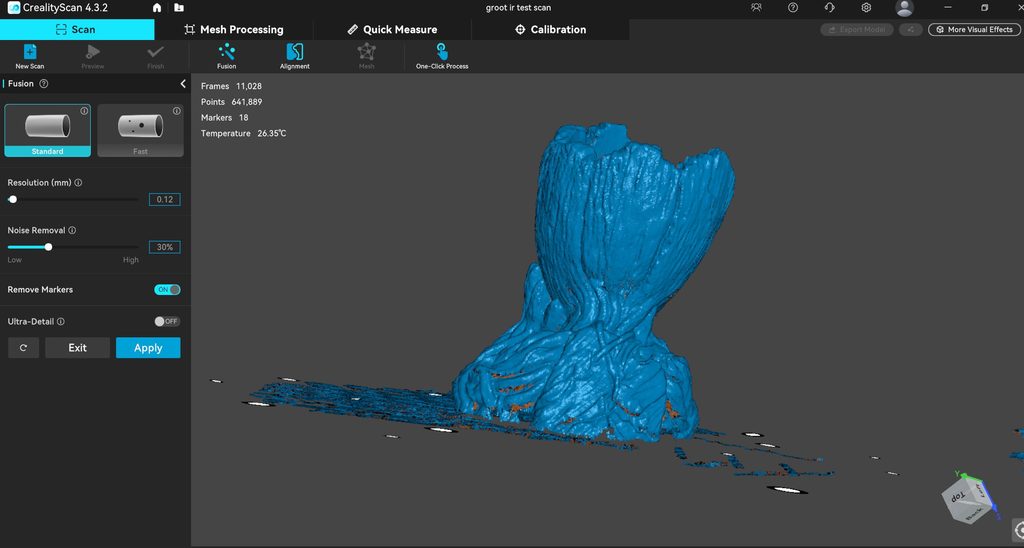
This was an important part of learning the Raptor’s workflow. A complicated object doesn’t necessarily have to be captured perfectly in a single pass. When an area is difficult to reach or hidden from the scanner, capturing it separately and combining the scans can be much more effective than trying to reconstruct the geometry afterward.
There were still some holes and imperfections after fusion, so the next step was mesh processing and cleanup. That’s where we used CrealityScan’s tools to refine the model and prepare it for the next stage of the 3D-printing workflow.
Processing and Cleaning Up the Scan
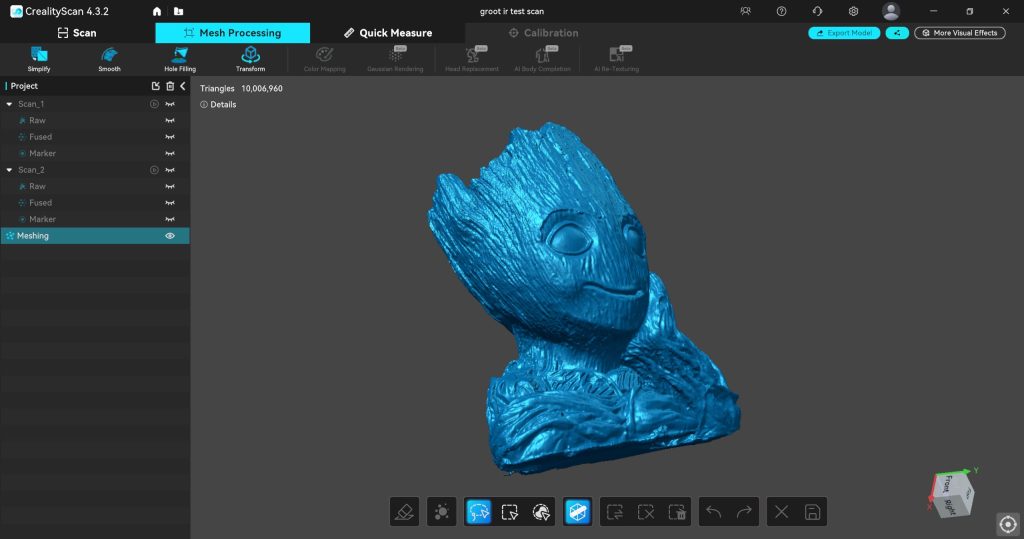
Once we had aligned and fused the additional scan with the original, we had a much more complete model, but it still wasn’t ready to print. There were visible artifacts, rough areas, and holes that needed to be addressed before we could move on to the final model.
This is where CrealityScan’s mesh-processing tools became an important part of the workflow.
Smoothing the Model
We used CrealityScan’s smoothing tools to reduce some of the roughness and scanning artifacts in the mesh. The goal wasn’t to make Groot perfectly smooth, since doing so could remove legitimate surface detail. Instead, we used smoothing selectively to clean up the scan while retaining the character of the original figurine.
That balance is particularly important with detailed objects. Excessive smoothing can make a scan look cleaner while actually making the final model less accurate.
Removing Scan Spikes
The scan also contained some obvious spikes and other artifacts that weren’t part of the original figurine.
CrealityScan’s Remove Spikes tool provided several levels of cleanup, allowing us to reduce those artifacts without applying unnecessarily aggressive processing. This was a useful step because isolated spikes can become particularly noticeable once the model is viewed as a solid mesh.
Filling the Remaining Holes
After the initial cleanup, there were still holes in the mesh, particularly toward the back of the figurine.
We first tried CrealityScan’s automatic hole-filling tools, but they didn’t completely eliminate the remaining gaps. Rather than applying increasingly aggressive automatic repairs, we manually filled the remaining problem areas.
The remaining repairs were relatively minor, but they demonstrated an important part of the workflow: even a good scan may require some hands-on mesh editing before it becomes a finished model.
For our Groot scan, the combination of additional scanning, automatic processing, and manual cleanup gave us a much more complete and usable model than the original scan alone.
Creating a Flat Base
Our Groot model presented one more practical problem.
The bottom of the scanned object wasn’t naturally shaped for 3D printing, so we manually created a flat base across the bottom of the model. We then filled the remaining small holes.
This gave us a much more useful model for the next stage of the process.
It’s also a good example of how scanning and CAD/mesh editing overlap. The goal isn’t always to reproduce the physical object exactly as the scanner sees it. Sometimes you need to make intentional changes to the scanned model to make it useful.
For 3D printing, a flat base is a perfect example.
From CrealityScan to Bambu Studio
The real test was what happened when we took the finished STL out of CrealityScan and into a slicer. We imported the processed Groot model into Bambu Studio. The model imported successfully, but Bambu Studio immediately gave us some useful information about the mesh.
The model measured approximately 112.8 × 86.2 × 93.0 mm and contained more than one million triangles. Bambu Studio also reported 1,932 open edges and offered a repair option. The model still needs to be evaluated in the environment where it will ultimately be used.
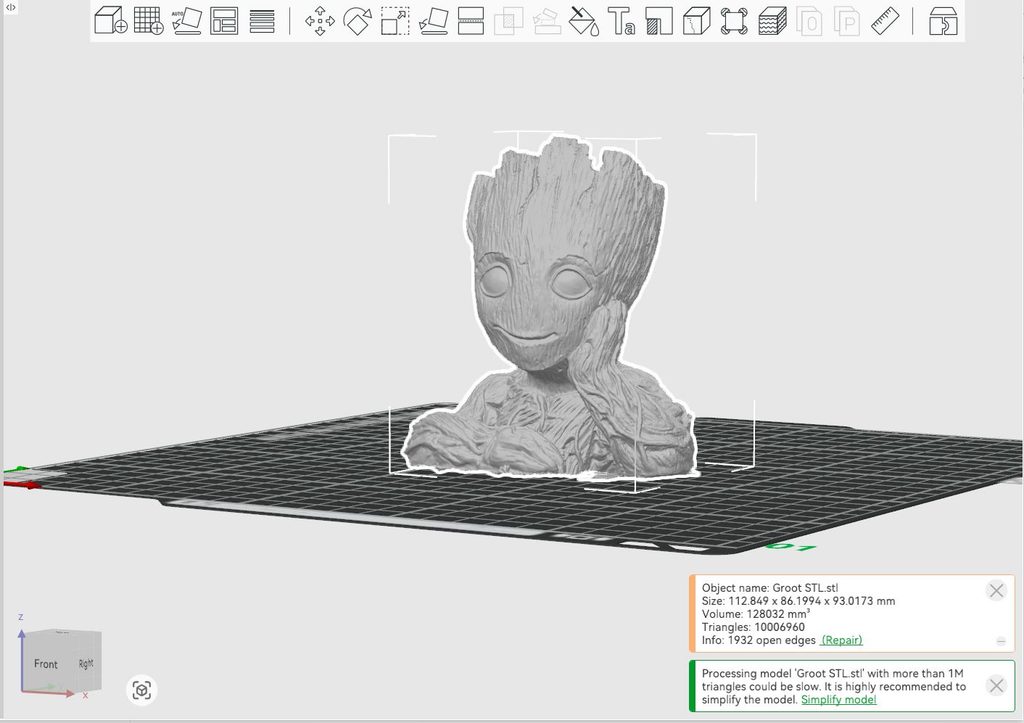
Bambu Studio also warned that the model contained more than one million triangles and suggested simplifying it. That’s not necessarily surprising for a detailed scan, but it does illustrate one of the tradeoffs involved in high-resolution scanning. More geometric data isn’t automatically better.
A dense mesh can preserve tremendous detail, but it can also create larger files and make subsequent processing more demanding. For many 3D-printing applications, there is a point where reducing the mesh complexity makes the model easier to work with without producing a visible loss of quality.
For users working with Bambu printers, the scanned model can then become part of the same workflow used for other models. Our existing 3D-printer comparison provides an example of how we evaluate the printer side of that workflow.
What We Learned From the Groot Test
The Groot test taught us more about 3D scanning than simply whether the Raptor could capture a figurine.
First, the Raptor is capable of capturing substantial detail. The overall shape and surface features of the figurine came through well.
Second, scanning technique matters. The missing geometry under the chin wasn’t caused by a lack of resolution. It was caused by the scanner’s inability to see that surface from the positions we used.
Third, post-processing is part of the process. Alignment, fusion, smoothing, spike removal, hole repair, and creating a printable base all played a role in producing the final model.
Finally, the finished STL still needs to be evaluated in the slicer. Importing the model into Bambu Studio gave us another opportunity to identify mesh issues and determine whether the model needed additional repair or simplification.
That is a much more realistic picture of what owning a 3D scanner is like.
CR-Scan Raptor for 3D Printing
The Raptor is particularly interesting for people who want to combine scanning with 3D printing.
A scanner can dramatically reduce the amount of time required to reproduce the general shape of an existing object. Instead of starting with a blank CAD workspace, you begin with a digital representation of something that already exists.
That can be useful for figurines, decorative objects, replacement parts, custom modifications, enclosures, prototypes, and many other projects.
The important caveat is that a scanned mesh isn’t necessarily the same thing as a properly modeled mechanical part.
If you’re reproducing an object where exact dimensions, hole locations, threads, or mating surfaces matter, you may still need to bring the scan into CAD software and use it as reference geometry.
For artistic objects and many hobby projects, however, the scan itself may be sufficient after appropriate cleanup.
CR-Scan Raptor for Reverse Engineering
Reverse engineering is another area where the Raptor can be useful.
For objects with complex curves or organic geometry, manually measuring every surface can be extremely time-consuming. A 3D scan gives you a digital representation that can serve as a reference when rebuilding the object.
This doesn’t mean the Raptor automatically creates a parametric CAD model.
Instead, think of the scanner as a way to capture existing geometry. You can then use that geometry as the starting point for your own design work.
For mechanical parts, you may still want to establish critical dimensions manually or with precision measuring equipment. For less demanding projects, however, scanning can save a considerable amount of modeling time.
What We Like About the CR-Scan Raptor
Hybrid scanning technology
The combination of blue laser and infrared scanning gives the Raptor flexibility that simpler scanners don’t have.
Excellent detail potential
Our Groot scan captured a surprising amount of surface detail for a small figurine, providing a strong starting point for the finished model.
Capable processing software
CrealityScan isn’t just a utility for starting and stopping the scanner. It provides a meaningful collection of tools for turning scan data into a usable mesh.
Good fit for 3D printing
The Raptor can be used to create digital models that can then be processed and brought into a standard 3D-printing workflow.
Useful for more than figurines
The scanner has applications in reverse engineering, prototyping, hobby CAD, replacement parts, and other maker projects.
What We Don’t Like
There is a learning curve
The Raptor is more sophisticated than a basic consumer scanner. Getting good results requires learning how scanning modes, tracking, object positioning, and post-processing work together.
Hidden surfaces remain a problem
The scanner cannot capture geometry it cannot see. Our Groot test demonstrated this clearly with the underside of the chin.
Post-processing takes time
Alignment, fusion, cleanup, hole repair, and mesh preparation can all take additional time.
Initial USB issue
Our first connection attempt resulted in intermittent USB recognition problems. Connecting directly to the motherboard USB port solved the problem, but it was an unnecessary complication during setup.
Who Should Buy the CR-Scan Raptor?
The Raptor makes the most sense for users who want to do more than occasionally create a quick digital copy of an object.
It’s particularly well suited to:
- 3D-printing enthusiasts
- Makers
- Figurine scanning
- Small-object scanning
- Reverse engineering
- Hobby CAD work
- Prototyping
- Product development
- Users who don’t mind learning mesh-processing software
If you want a scanner that requires virtually no learning and produces a perfect finished model every time, the Raptor may not be the right tool.
But if you’re willing to learn the workflow, it provides considerable room to grow.
Who Shouldn’t Buy It?
The Raptor probably isn’t the best choice for someone expecting a completely automatic experience.
3D scanning requires some patience. Complex geometry may require multiple scanning angles or additional passes. The resulting mesh may need cleanup, and mechanical parts may require additional CAD work before they can be used as accurate replacements.
That’s not unique to the Raptor. It’s simply part of working with 3D scanning technology.
If you understand that going in, the workflow becomes much less frustrating.
CR-Scan Raptor vs. Other 3D Scanners
There are now many 3D scanners available, ranging from inexpensive consumer models to professional systems costing thousands of dollars.
The Raptor occupies an interesting position because it offers considerably more sophisticated scanning technology than the simplest entry-level scanners without requiring the kind of investment associated with professional industrial equipment.
The right comparison ultimately depends on what you’re trying to scan.
A scanner intended primarily for figurines and small objects may have different strengths from one intended for large mechanical components. Likewise, a scanner intended for reverse engineering may prioritize accuracy and tracking differently from one designed primarily for artistic capture.
That is why we wouldn’t recommend choosing solely on headline resolution or scan speed.
The best 3D scanner is the one whose technology and workflow match your application.
Frequently Asked Questions
Is the CR-Scan Raptor good for 3D printing?
Yes. The Raptor can be a very useful tool for creating models that will eventually be 3D printed. However, the scan may require alignment, fusion, cleanup, hole repair, and other processing before it becomes a good printable model.
Is the CR-Scan Raptor good for figurines?
Yes, with the normal limitations of 3D scanning. Our Groot test captured the overall shape and surface detail well, but the underside of the chin demonstrated how easily hidden geometry can be missed.
Can the CR-Scan Raptor be used for reverse engineering?
Yes. It can provide useful reference geometry for many reverse-engineering projects. However, highly precise mechanical parts may still require conventional measurements and CAD modeling.
Does the CR-Scan Raptor scan everything automatically?
No. Scanning technique matters. Object geometry, tracking, scanner position, surface characteristics, and lighting conditions can all affect the result.
Does the CR-Scan Raptor require post-processing?
Often, yes. Depending on the object, you may need to align scans, fuse data, remove artifacts, smooth surfaces, fill holes, simplify the mesh, or otherwise modify the resulting model.
What software does the CR-Scan Raptor use?
The Raptor uses CrealityScan, Creality’s dedicated 3D-scanning software. Creality provides software downloads, manuals, and troubleshooting resources through its official support system.
Can a CR-Scan Raptor scan a small object?
Yes. Small-object scanning is one of the applications for which a scanner like the Raptor can be useful, although object size, geometry, tracking, and surface characteristics all affect the practical result.
Is the CR-Scan Raptor easy to use?
The basic scanning process is relatively straightforward once everything is configured, but there is definitely a learning curve. The bigger challenge is understanding how to get consistently good scans and then process those scans into useful models.
Final Verdict
The Creality CR-Scan Raptor is a capable 3D scanner that rewards users who are willing to learn how 3D scanning actually works.
Our experience wasn’t completely plug-and-play. We encountered a USB connection issue during setup, although connecting directly to a motherboard USB port resolved it. After updating the firmware and completing calibration, we were able to move into actual scanning.
Our Groot test showed both the strengths and limitations of the technology. The Raptor captured the overall object and a surprising amount of surface detail, but the geometry underneath the chin was difficult to capture because of the overhang. The resulting model then required alignment, fusion, cleanup, spike removal, hole repair, and a manually created flat base.
We then took the resulting STL into Bambu Studio, where the model measured approximately 112.8 × 86.2 × 93.0 mm and contained more than one million triangles. Bambu Studio also identified open edges and suggested mesh simplification.
That last step is important because it reinforces the biggest lesson from our testing:
A 3D scanner doesn’t eliminate the modeling process. It changes where the modeling process begins.
Instead of starting with a blank CAD screen, you start with a digital representation of something that already exists. For figurines, small objects, reverse engineering, hobby projects, and 3D printing, that can be an enormous advantage.
The Raptor isn’t a magic button that turns a physical object into a perfect STL. But after spending time with the scanner and CrealityScan, we found it to be a genuinely capable tool with enough flexibility to support much more than casual scanning.
If you’re looking for a capable 3D scanner for 3D printing, reverse engineering, and detailed object capture—and you’re willing to put in some hands-on work—the CR-Scan Raptor is definitely worth considering.
For more hands-on testing and product evaluations, visit the HomeTestBench Reviews section.